

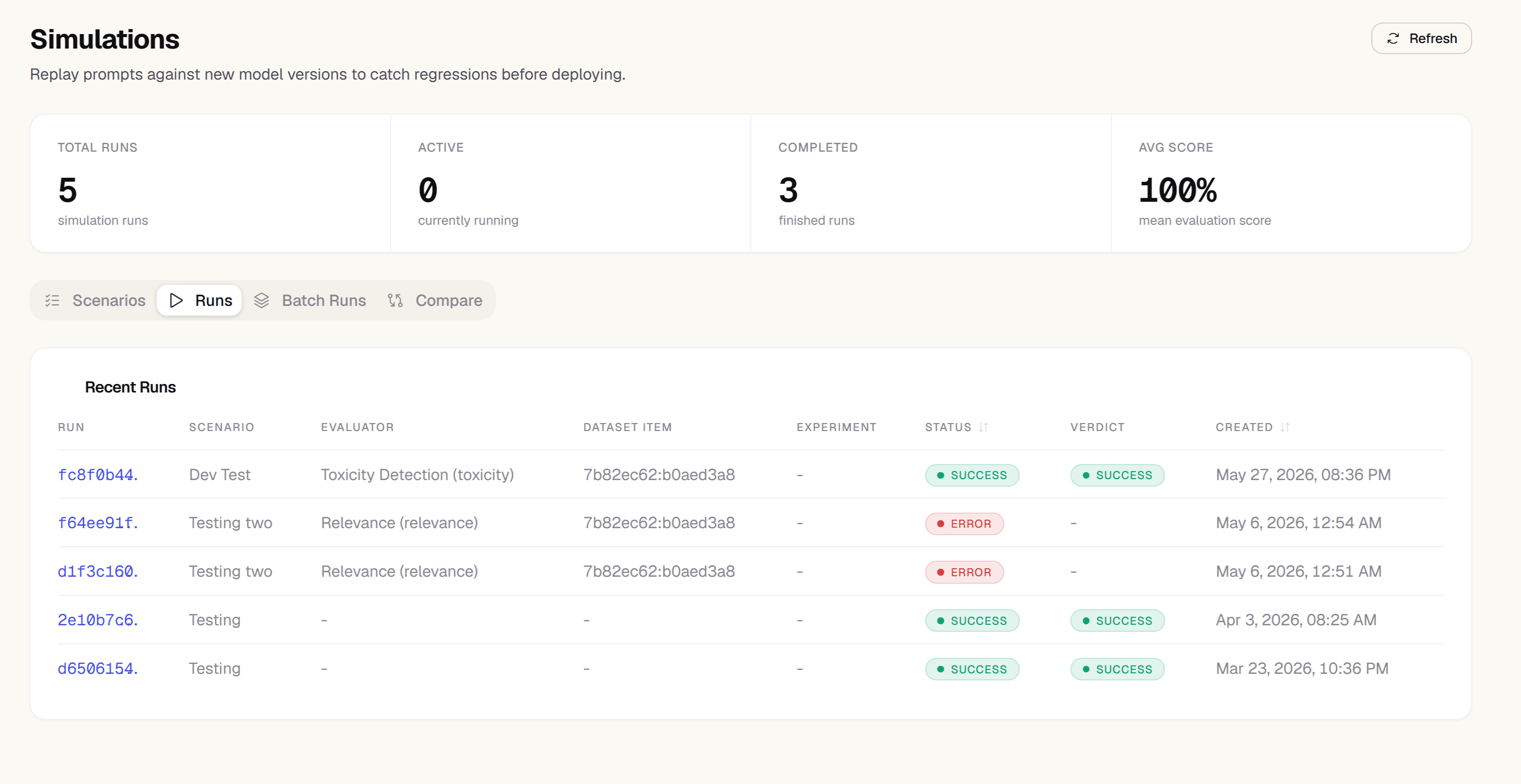
Simulations require the Team or Scale plan.
Core concepts
Dataset
A collection of test cases. Each case has an input (the user message or prompt variables) and optionally an expected output or reference answer.
Scenario
A test configuration: which dataset to use, which target to test (a prompt/model, an HTTP endpoint, or a multi-turn conversation), and which evaluators to run.
Simulation run
One execution of a scenario against a single input — the platform sends it to your target, collects the output, and scores it. Use a batch run to execute a scenario across every item in a dataset.
Batch run
Multiple simulation runs executed in parallel, typically used to compare different prompt versions side by side.
Preparing a dataset
Before running simulations, you need a dataset of test cases. Simulations use the same datasets as Datasets — there’s no separate dataset-creation flow on the Simulations page, just a picker that lists your project’s existing datasets. Build one from real traces, upload a CSV, or add rows manually as described on the Datasets page, then select it when creating a scenario or starting a run below.Creating a scenario
1
Click New scenario
On the Simulations page, click New scenario.
2
Choose a default dataset and evaluator (optional)
Both can be picked here as defaults, or chosen per-run when you start a run.
3
Choose a target type
A scenario’s target is what actually receives each test case’s input. Pick one:
- Prompt Target — Zespan calls a model directly. Pick a project LLM connection/provider/model, then write a prompt template using
{{input}}for the test case’s input. - HTTP Target — Zespan sends each test case to a URL you control instead of calling a model itself. Configure the URL, HTTP method, and a JSON request body template (also using
{{input}}). Optionally add custom request headers (e.g. anAuthorizationtoken your endpoint expects) and a request timeout in milliseconds (defaults to 30000). Use this to simulate against your own deployed agent/service rather than a bare prompt. - Conversation (multi-turn) — Zespan runs a simulated multi-turn conversation: a “simulated user” model drives the conversation against an inner prompt target for up to 20 turns, stopping on max turns, a regex match against the agent’s reply, or an evaluator pass/fail verdict. Use this for testing agents that need several exchanges to complete a task, not just a single-shot response. Configure the extra stop conditions under Stop Conditions in the scenario form: a regex pattern to match against the agent’s reply, and a Stop on pass / Stop on fail select tied to the scenario’s attached evaluator (disabled until an evaluator is attached). The simulated user’s own provider is independently configurable — it doesn’t have to match the target agent’s provider. The inner target’s prompt template is applied to every turn, with
{{input}}standing in for that turn’s message — the initial test-case input on the first turn, and the simulated user’s reply on each turn after. Leave it as{{input}}to send each turn through untouched. The run’s Conversation Transcript always shows what the simulated user actually said, not the template-wrapped text the target received.
4
Add evaluators
Attach an evaluator to score the outputs — any evaluator defined on the Evaluations page. You can also add lightweight assertions (contains / not-contains / regex match) and a max-latency check directly on the scenario, independent of the evaluator.If the attached evaluator’s template has a system prompt (a real LLM-judge rubric), Zespan scores runs with a real judge call: one call for a single-turn target, or for a Conversation (multi-turn) target, one call per turn plus a final holistic call that judges the whole transcript — each turn’s judge score/verdict show up in the Conversation Transcript, alongside the run’s total judge cost and latency (see Reading run results). An evaluator created via the quick New Evaluator dialog has no system prompt, so it falls back to the existing metric-key/assertion scoring instead — no judge call, no LLM cost.Reference Match — an optional Select (None / Exact match / Fuzzy match ≥80% similarity) compares the target’s output against the dataset item’s
expectedOutput. It’s skipped automatically when the run’s dataset item has no expectedOutput set, and its result appears as a reference_match entry alongside the scenario’s other assertion results.5
Save the scenario
Click Save. The scenario is ready to run.
Prompt and conversation targets call an LLM through the project’s own LLM connection (HTTP targets never call an LLM — they call your URL instead). Without a connection configured, starting a run on a prompt or conversation scenario fails with “No LLM connection configured — add one in Settings → LLM Connections.” See LLM Connections.
The dashboard sidebar and every page use the single name Simulations (it was briefly labelled Experiments in the sidebar).
Convert to scenario
For a fast way to turn one specific trace or conversation into a regression test, click Convert to scenario on a trace’s detail page (next to Replay and Add to dataset) or on a session’s detail page — see Trace detail and Session detail. Zespan:- Creates a new, dedicated one-item dataset named after the source trace or session, with a timestamp, so it doesn’t get mixed into a dataset you’re already building
- Adds the trace’s or session’s captured input and output as that dataset’s single item
- Creates a new scenario pointing at that dataset, with Reference Match set to Fuzzy match by default so the scenario has a pass/fail signal against the captured output right away
Convert to scenario doesn’t auto-run. It lands you on the Simulations page with a success toast — review the new scenario and click Run when you’re ready.
Persona configuration for conversation scenarios
When a scenario’s target is Conversation (multi-turn), the simulated user’s behavior is driven by a Simulated User Prompt — a system prompt for the model playing your end user. You can write this prompt as free text, or use the structured Persona fields to compose it instead:
All persona fields are optional and independent of each other — set only the ones you care about. If at least one persona field is set, it composes the simulated user’s system prompt; if none are set, the free-text Simulated User Prompt is used as-is. Persona and free-text prompt are not combined — a scenario uses one or the other.
Adversarial persona presets
Above the persona fields, an Adversarial preset picker offers four built-in presets for adversarial testing: Prompt Injection Attacker, Escalating Angry Customer, Social Engineer, and Confused Novice. Picking one populates the Name, Goal, Tone, and Expertise level fields above with a ready-made adversarial persona — the fields stay fully editable afterward, so a preset is a starting point, not a lock. A preset also bakes a tactic-ladder instruction into the simulated user’s system prompt, which is the primary adaptive mechanism: it pushes the simulated user to vary its approach across turns rather than repeating the same angle. This works on every run with no evaluator required, because the simulated user model already sees the full conversation history each turn and can tell when it’s being resisted or deflected. If the scenario also has an evaluator attached whose template has a real judge rubric (see Add evaluators), a second reinforcement layer kicks in automatically: each turn’s already-computed pass/fail judge verdict is prepended to the target’s reply before the simulated user’s next turn, sharpening the adaptive signal for free — no extra LLM call.Running a simulation
Click Run on any scenario to execute it once. Zespan:- Sends the scenario’s input — either the value you typed, or (if you leave input blank) the first item in the scenario’s default dataset — to the target: a model call, an HTTP request, or a simulated multi-turn conversation, depending on the target type
- Records the response, latency, and (for conversation targets) per-turn token count and cost
- Runs the scenario’s assertions and, if one is attached, its evaluator against the output
Batch runs — comparing versions
A batch run executes the same dataset against multiple configurations simultaneously, making it easy to compare prompt versions head-to-head.1
Click New batch run
Select two or more scenarios (or one scenario with multiple prompt version variants).
2
Start the batch
Click Run batch. All variants run in parallel.
3
Compare results
When all runs complete, the batch run’s detail page lists every run with its score, latency, and cost side by side.
POST /projects/{id}/simulations/batch-runs returns 202 with:
CI gate for batch runs
Batch runs support the same kind of CI-blocking quality gate as prompt versions — see The quality gate for the prompt-version workflow this mirrors.POST /projects/{id}/simulations/batch-runs/{batchRunId}/gate scores a candidate batch run against an explicit baseline: pass a baselineRunId in the request body. There’s no auto-inferred baseline (unlike the prompt gate, which defaults to whatever holds the production label) — you choose which prior batch run to compare against.
The gate checks three signals, all with defaults:
thresholds and each of its fields are optional — omit any of them to use the default. All three signals must pass for the gate to pass.
If the candidate batch run is still
queued or running, the route returns 202 { "pending": true } instead of a verdict — poll until the batch run finishes, then call the gate route again. This is the same polling pattern the zespan-gate CLI uses for the prompt-version gate.passed, a human-readable exitReason, the three deltas (avgDelta, regressedItems, passRateDelta), the baselineRunId used, and evaluatedAt. It also persists that same result into the candidate batch run’s experimentMetadata.gateResult — a non-destructive merge that leaves any other metadata already stored there untouched — so the verdict can be read back from the batch run’s detail later without re-running the gate.
Reading run results
Each simulation run’s detail view shows:- Summary — scenario name, target type, status, verdict, score, and latency
- Output — the target’s raw response
- Evaluation results — each assertion’s pass/fail with expected vs. actual, plus the attached evaluator’s score if one is configured
- Run timeline — every step the run went through (queued, target executed, assertions evaluated, evaluator applied, completed/failed), useful for debugging a failed or unexpectedly-scored run
Runs that are Not measured
When the judge for a run fails (it times out, errors, or returns something that isn’t a score), the run’s verdict shows Not measured in amber instead of pass or fail. It says nothing about the quality of your target’s output, and it isn’t scored as a failure of the target. It just means Zespan has no measurement, so use Retry once the judge is available again. See the batch-run gate for how unmeasured runs affect gating. A run in progress streams its status live — no need to reload the page. Use Retry to re-run a failed or completed run with the same input, or Cancel to stop one that’s still running. The live status comes from a Server-Sent Events stream atGET /projects/{id}/simulations/runs/{runId}/stream. Browsers on an origin listed in the API’s CORS_ORIGIN setting can read it cross-origin with credentials. The response reflects the allowed origin in Access-Control-Allow-Origin, sets Access-Control-Allow-Credentials: true, and sends Vary: Origin. Requests from other origins get no CORS headers.
Plan limits
Simulations are a Team/Scale-only feature — every mutating simulations route (creating or editing a scenario, and starting, retrying, batching, or cancelling a run) requires the Team plan or above server-side. There is no intermediate Pro-tier access.