

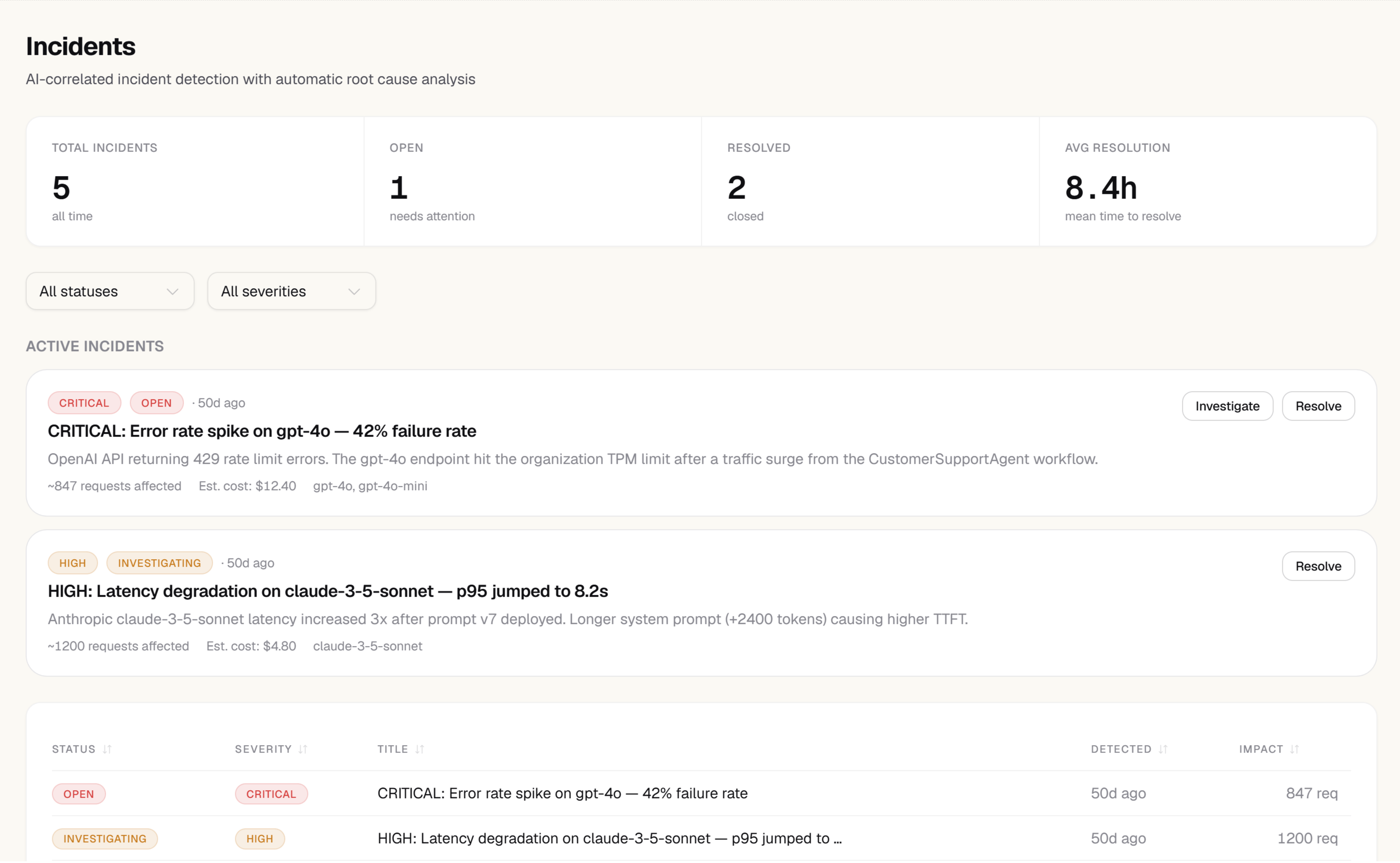
Incident detection and management require the Team or Scale plan.
How incidents are created
Zespan creates incidents automatically when:- An anomaly is detected (cost spike, error rate jump, latency surge) and a related alert rule fires within 15 minutes
- Three or more traces with the same error code occur within a 10-minute window
- An AI analysis detects a pattern across multiple traces that it classifies as a systemic issue
Incident states
Each incident moves through three states:
Zespan auto-resolves an incident when its driving metric returns to baseline for 30 consecutive minutes. You can also resolve an incident manually.
The incidents list
The main Incidents page shows a table of all incidents, ordered by most recent. Each row shows:- Severity —
high,medium, orlow, based on impact to cost or error rate - Title — a one-sentence summary of the issue
- Affected metric — which measurement is out of range
- State — detecting, active, or resolved
- Duration — how long the incident has been open
- Models affected — which model(s) are involved
Incident detail
Click any incident to open its detail view. The detail view shows:Timeline
A chronological feed of all signals related to this incident:- Anomaly detections with their explanation and severity
- Alert rule triggers with threshold and actual value
- Related error traces (grouped by error code)
- Configuration changes that may have contributed (from the audit log)
Changes around this incident
A before/after view of everything that changed in the project in the six hours on either side of when the incident started — prompt deploys, agent lifecycle transitions, policy/evaluator/alert edits, and changes reported from your own pipeline. Both sides are labeled with their count (Before (N) / After (N)) so the split itself is the takeaway: what was already true when the incident started, versus what happened next. If the underlying data sources don’t all respond in time, a banner marks the result as partial rather than silently showing an incomplete list as complete. This is the same change feed available project-wide from the Changes section of the sidebar, pivoted on this incident’s start time instead of a date range.Root cause analysis
When an incident is created, Zespan automatically runs AI root cause analysis across the correlated traces. The results appear at the top of the incident detail view under AI Root Cause Analysis.
The analyzer uses a fast path for common patterns (rate limits, timeouts, context length exceeded, provider 5xx errors) and falls back to AI analysis for novel cases. Trace content is sanitized before analysis — only error details, model metadata, span structure, and latency are used.
If analysis is still running, the section shows “Analysis in progress…” and updates automatically when complete.
Propose Fix
For an incident ZespanPilot has traced to a single causal prompt deploy — the same case the Recommended fixes rollback suggestion already covers — a Propose Fix button lets you go one step further than a suggestion: generate an actual fix candidate, test it against this incident’s own failures, and route it for approval, all without leaving the incident. No other step on this page changes anything by itself; Propose Fix is the one closed loop that goes from “here’s what broke” to a tested, human-approved prompt version.1
Generate a candidate
Click Propose Fix. Zespan runs the same Enhancer used on a prompt’s Enhance tab, grounded only in the real failing traces captured during this incident’s own time window — not a generic rewrite. The result is saved as a new, unlabeled draft version of the causal prompt.
2
Test head-to-head against production
Zespan replays this incident’s exact failing traces against both the current production prompt and the draft, scores both runs with your project’s own LLM-judge evaluator — the same judge that scores this project’s production traces — and compares them with the same quality gate used elsewhere in Simulations. Only a higher-is-better judge is used: a “lower is better” rubric (toxicity, hallucination, and similar) would invert the gate’s comparison, so those are skipped. If your project has no suitable LLM-judge evaluator deployed, Zespan provisions a reference-free response-quality judge (Closed-Loop Fix Response Quality) for this comparison; it is created disabled, so it never scores your live traces or adds cost to ingest.
3
Gate fails: nothing is proposed
If the draft doesn’t beat production on the gate, the run stops there. The draft prompt version stays a draft — nothing is sent for approval — and the incident shows the gate’s reason for failing.
4
Gate passes: goes to your approval queue
If the draft beats production, a request appears in ZespanPilot’s approval queue, showing the gate’s evidence — score deltas and regression count — alongside the request.
5
Gate result is unverified: also nothing is proposed
The comparison replays each captured failure’s own recorded tool calls, not live ones — that’s what makes it a faithful replay of the incident rather than a fresh run against whatever your tools return today. When that replay isn’t fully faithful, the run reports
unverified instead of passed, even if the score compared favourably. This happens for either of two independent reasons: a tool call was made but its result was never captured, so the replay had to fall back to a live call; or your project’s retention window had already aged out the incident’s tool-call data by the time the run tried to read it back, so there was nothing to replay against at all. Either way, a favourable score isn’t treated as evidence the fix works — no approval request is created, the same as an outright gate failure.6
A human approves or rejects
Approving lets the reviewer choose whether to promote the fix to
staging or straight to production. Rejecting leaves the draft untouched. The reviewer must be someone other than the person who clicked Propose Fix — you cannot approve your own fix candidate.Propose Fix requires the incident to have exactly one identified causal prompt deploy. If the incident’s timeline has zero or more than one candidate cause, the button isn’t available — the same requirement the Recommended fixes rollback suggestion already applies. Requires the Team or Scale plan and both the
incidents:manage and prompts:manage permissions — because the run creates a new prompt version, it is restricted to owner and admin roles; an editor cannot start one.Your organization also needs at least one other owner or admin besides you. Because a fix candidate can’t be approved by the person who requested it, a run started in an organization with a single admin could never be approved — so Zespan refuses it up front rather than spending a generation and test cycle on a proposal that would dead-end in the approval queue.Affected traces
A filtered list of the specific traces associated with this incident, with error codes, latency, and cost. Click any trace to open it in the flame graph view.Resolution notes
A free-text field where you can record what you found and how you fixed it. Resolution notes are preserved after the incident closes and appear in the incident history. Use them to build a runbook for recurring issues.Resolving an incident
Click Mark resolved on any active incident. You’ll be prompted to add a brief resolution note. Once resolved:- The incident state changes to “Resolved”
- The resolution timestamp and note are saved
- If the same underlying issue recurs, a new incident opens automatically — it does not reopen the closed one
Auto-remediation
On the Scale plan, you can configure auto-remediation rules that ZespanPilot applies automatically when an incident of a specific type opens. For example:- “When a GPT-4o error spike incident opens, switch to GPT-4o-mini”
- “When a rate-limit incident opens, reduce sample rate to 50%”
Notifications
Incidents trigger the same notification channels as alert rules — email for Pro/Team, and webhooks for Scale. If an incident is opened while an alert for the same metric is active, Zespan deduplicates the notification so you do not receive duplicate alerts.Next steps
- Changes — the project-wide timeline behind the “Changes around this incident” panel, including how to report your own pipeline deploys
- Alerts — the threshold rules that can open an incident automatically
- ZespanPilot — the approval queue that Propose Fix requests land in