> ## Documentation Index
> Fetch the complete documentation index at: https://docs.zespan.com/llms.txt
> Use this file to discover all available pages before exploring further.
# Simulations — test LLM behavior before shipping
> Run your LLM application against a dataset of test cases to catch regressions before they reach production. Compare outputs, scores, and latency across prompt versions.
Simulations let you run your LLM configuration against a prepared dataset of test cases before deploying a change. Instead of finding out a prompt change broke something in production, you run a simulation, review the outputs and evaluation scores, and only promote the change when you're confident it behaves correctly.
 Simulations require the **Team** or **Scale** plan.
## Core concepts
A collection of test cases. Each case has an input (the user message or prompt variables) and optionally an expected output or reference answer.
A test configuration: which dataset to use, which target to test (a prompt/model, an HTTP endpoint, or a multi-turn conversation), and which evaluators to run.
One execution of a scenario — the platform runs each dataset item through your LLM configuration and collects outputs and scores.
Multiple simulation runs executed in parallel, typically used to compare different prompt versions side by side.
## Preparing a dataset
Before running simulations, you need a dataset of test cases. Simulations use the same datasets as [Datasets](/dashboard/datasets) — there's no separate dataset-creation flow on the Simulations page, just a picker that lists your project's existing datasets. Build one from real traces, upload a CSV, or add rows manually as described on the [Datasets](/dashboard/datasets) page, then select it when creating a scenario or starting a run below.
## Creating a scenario
On the Simulations page, click **New scenario**.
Both can be picked here as defaults, or chosen per-run when you start a run.
A scenario's target is what actually receives each test case's input. Pick one:
* **Prompt Target** — Zespan calls a model directly. Pick a project LLM connection/provider/model, then write a prompt template using `{{input}}` for the test case's input.
* **HTTP Target** — Zespan sends each test case to a URL you control instead of calling a model itself. Configure the URL, HTTP method, and a JSON request body template (also using `{{input}}`). Use this to simulate against your own deployed agent/service rather than a bare prompt.
* **Conversation (multi-turn)** — Zespan runs a simulated multi-turn conversation: a "simulated user" model drives the conversation against an inner prompt or HTTP target for up to 20 turns, stopping on max turns, a keyword match, or an evaluator verdict. Use this for testing agents that need several exchanges to complete a task, not just a single-shot response. The inner target's **prompt template** is applied to *every* turn, with `{{input}}` standing in for that turn's message — the initial test-case input on the first turn, and the simulated user's reply on each turn after. Leave it as `{{input}}` to send each turn through untouched. The run's **Conversation Transcript** always shows what the simulated user actually said, not the template-wrapped text the target received.
Attach an evaluator to score the outputs — any evaluator defined on the Evaluations page. You can also add lightweight assertions (contains / not-contains / regex match) and a max-latency check directly on the scenario, independent of the evaluator.
Click **Save**. The scenario is ready to run.
Prompt and conversation targets call an LLM through the project's own **LLM connection** (HTTP targets never call an LLM — they call your URL instead). Without a connection configured, starting a run on a prompt or conversation scenario fails with "No LLM connection configured — add one in Settings → LLM Connections." See [LLM Connections](/platform/llm-connections).
## Persona configuration for conversation scenarios
When a scenario's target is **Conversation (multi-turn)**, the simulated user's behavior is driven by a **Simulated User Prompt** — a system prompt for the model playing your end user. You can write this prompt as free text, or use the structured **Persona** fields to compose it instead:
| Field | Description |
| --------------- | ---------------------------------------------------------------------------------------------------------------------- |
| Name | The persona's name (e.g. "Alex") |
| Goal | What the simulated user is trying to accomplish (e.g. "get a refund") |
| Expertise level | `novice`, `intermediate`, or `expert` — shapes how much domain knowledge the simulated user brings to the conversation |
| Tone | The persona's manner (e.g. "polite but increasingly impatient") |
All persona fields are optional and independent of each other — set only the ones you care about. If at least one persona field is set, it composes the simulated user's system prompt; if none are set, the free-text **Simulated User Prompt** is used as-is. Persona and free-text prompt are not combined — a scenario uses one or the other.
## Running a simulation
Click **Run now** on any scenario to start a simulation run. Zespan:
1. Iterates over every item in the dataset
2. Sends each item's input to the scenario's target — a model call, an HTTP request, or a simulated multi-turn conversation, depending on the target type
3. Records the response, latency, token count, and cost
4. Runs each configured evaluator on the output
5. Aggregates results into a run summary
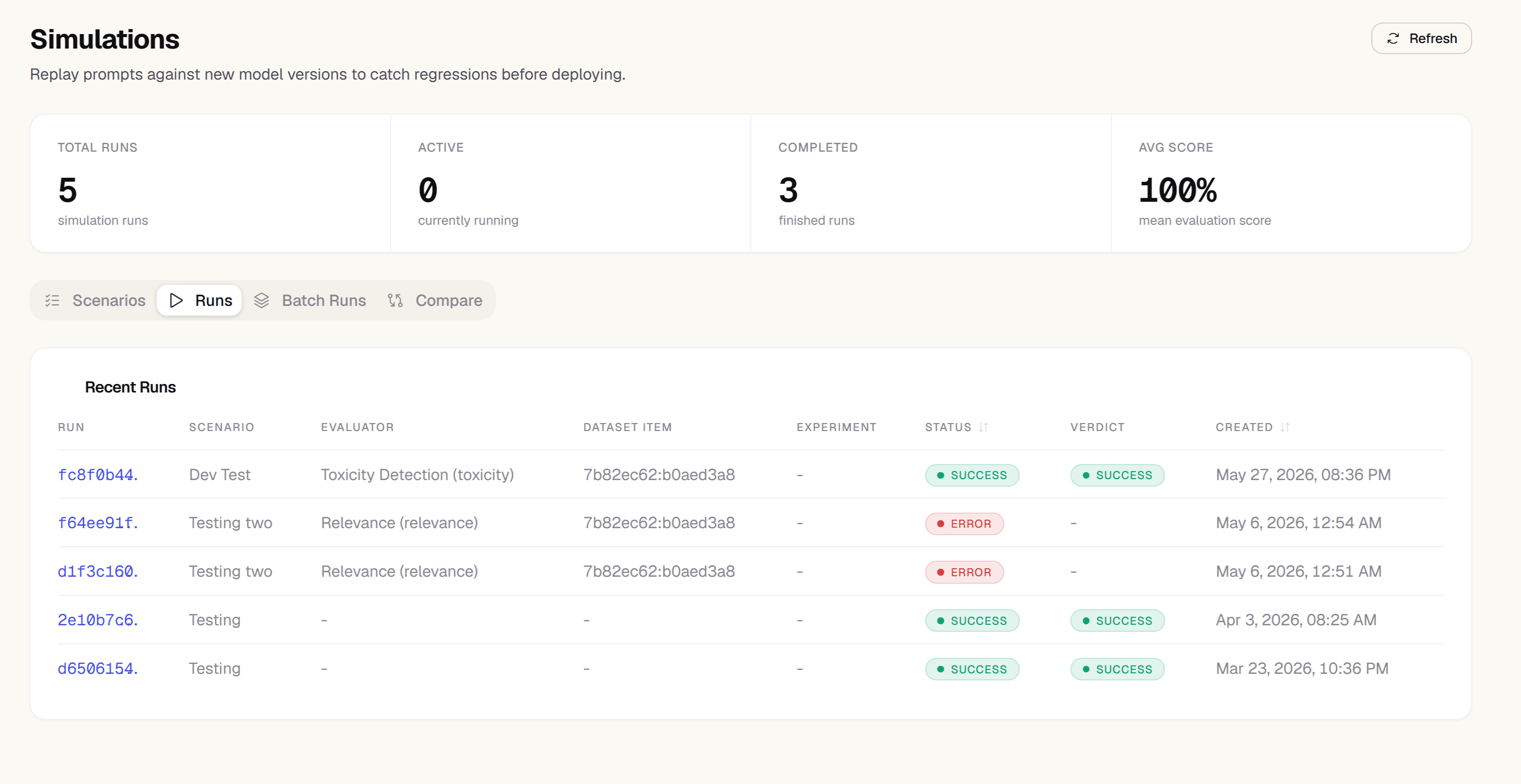
Simulation runs appear in the **Run history** table. Click any run to see per-item results.
## Batch runs — comparing versions
A batch run executes the same dataset against multiple configurations simultaneously, making it easy to compare prompt versions head-to-head.
Select two or more scenarios (or one scenario with multiple prompt version variants).
Click **Run batch**. All variants run in parallel.
When all runs complete, the comparison view shows side-by-side scores, latency, and cost for each variant. Rows with significant differences are highlighted.
Use batch runs before promoting a prompt from `staging` to `production`. Run the current production version and the candidate version through the same dataset and only promote if the candidate scores better on your key evaluators.
## Reading run results
Each simulation run's detail view shows:
* **Summary cards** — average score per evaluator, total cost, average latency
* **Per-item table** — each dataset item with its output, scores, and a link to the full trace
* **Score distribution** — histogram of score spread across items
* **Failed items** — items where the model returned an error or a score below threshold
Click any item row to see the full output text and all evaluator scores for that item.
For a run on a **Conversation (multi-turn)** scenario, the item's detail view also shows a **Conversation Transcript** — every turn in order, labeled **Simulated User** or **Target Agent**, with that turn's latency and cost, plus a total conversation cost computed from real per-model pricing across all turns.
## Plan limits
| Plan | Datasets | Scenarios | Monthly simulation runs |
| ----------------- | --------- | --------- | ----------------------- |
| Free / Solo / Pro | None | — | — |
| Team | Unlimited | Unlimited | 10,000 items/month |
| Scale | Unlimited | Unlimited | Unlimited |
Simulations are a Team/Scale-only feature — every mutating simulations route (creating or editing a scenario, and starting, retrying, batching, or cancelling a run) requires the **Team** plan or above server-side. There is no intermediate Pro-tier access.
Simulations require the **Team** or **Scale** plan.
## Core concepts
A collection of test cases. Each case has an input (the user message or prompt variables) and optionally an expected output or reference answer.
A test configuration: which dataset to use, which target to test (a prompt/model, an HTTP endpoint, or a multi-turn conversation), and which evaluators to run.
One execution of a scenario — the platform runs each dataset item through your LLM configuration and collects outputs and scores.
Multiple simulation runs executed in parallel, typically used to compare different prompt versions side by side.
## Preparing a dataset
Before running simulations, you need a dataset of test cases. Simulations use the same datasets as [Datasets](/dashboard/datasets) — there's no separate dataset-creation flow on the Simulations page, just a picker that lists your project's existing datasets. Build one from real traces, upload a CSV, or add rows manually as described on the [Datasets](/dashboard/datasets) page, then select it when creating a scenario or starting a run below.
## Creating a scenario
On the Simulations page, click **New scenario**.
Both can be picked here as defaults, or chosen per-run when you start a run.
A scenario's target is what actually receives each test case's input. Pick one:
* **Prompt Target** — Zespan calls a model directly. Pick a project LLM connection/provider/model, then write a prompt template using `{{input}}` for the test case's input.
* **HTTP Target** — Zespan sends each test case to a URL you control instead of calling a model itself. Configure the URL, HTTP method, and a JSON request body template (also using `{{input}}`). Use this to simulate against your own deployed agent/service rather than a bare prompt.
* **Conversation (multi-turn)** — Zespan runs a simulated multi-turn conversation: a "simulated user" model drives the conversation against an inner prompt or HTTP target for up to 20 turns, stopping on max turns, a keyword match, or an evaluator verdict. Use this for testing agents that need several exchanges to complete a task, not just a single-shot response. The inner target's **prompt template** is applied to *every* turn, with `{{input}}` standing in for that turn's message — the initial test-case input on the first turn, and the simulated user's reply on each turn after. Leave it as `{{input}}` to send each turn through untouched. The run's **Conversation Transcript** always shows what the simulated user actually said, not the template-wrapped text the target received.
Attach an evaluator to score the outputs — any evaluator defined on the Evaluations page. You can also add lightweight assertions (contains / not-contains / regex match) and a max-latency check directly on the scenario, independent of the evaluator.
Click **Save**. The scenario is ready to run.
Prompt and conversation targets call an LLM through the project's own **LLM connection** (HTTP targets never call an LLM — they call your URL instead). Without a connection configured, starting a run on a prompt or conversation scenario fails with "No LLM connection configured — add one in Settings → LLM Connections." See [LLM Connections](/platform/llm-connections).
## Persona configuration for conversation scenarios
When a scenario's target is **Conversation (multi-turn)**, the simulated user's behavior is driven by a **Simulated User Prompt** — a system prompt for the model playing your end user. You can write this prompt as free text, or use the structured **Persona** fields to compose it instead:
| Field | Description |
| --------------- | ---------------------------------------------------------------------------------------------------------------------- |
| Name | The persona's name (e.g. "Alex") |
| Goal | What the simulated user is trying to accomplish (e.g. "get a refund") |
| Expertise level | `novice`, `intermediate`, or `expert` — shapes how much domain knowledge the simulated user brings to the conversation |
| Tone | The persona's manner (e.g. "polite but increasingly impatient") |
All persona fields are optional and independent of each other — set only the ones you care about. If at least one persona field is set, it composes the simulated user's system prompt; if none are set, the free-text **Simulated User Prompt** is used as-is. Persona and free-text prompt are not combined — a scenario uses one or the other.
## Running a simulation
Click **Run now** on any scenario to start a simulation run. Zespan:
1. Iterates over every item in the dataset
2. Sends each item's input to the scenario's target — a model call, an HTTP request, or a simulated multi-turn conversation, depending on the target type
3. Records the response, latency, token count, and cost
4. Runs each configured evaluator on the output
5. Aggregates results into a run summary
Simulation runs appear in the **Run history** table. Click any run to see per-item results.
## Batch runs — comparing versions
A batch run executes the same dataset against multiple configurations simultaneously, making it easy to compare prompt versions head-to-head.
Select two or more scenarios (or one scenario with multiple prompt version variants).
Click **Run batch**. All variants run in parallel.
When all runs complete, the comparison view shows side-by-side scores, latency, and cost for each variant. Rows with significant differences are highlighted.
Use batch runs before promoting a prompt from `staging` to `production`. Run the current production version and the candidate version through the same dataset and only promote if the candidate scores better on your key evaluators.
## Reading run results
Each simulation run's detail view shows:
* **Summary cards** — average score per evaluator, total cost, average latency
* **Per-item table** — each dataset item with its output, scores, and a link to the full trace
* **Score distribution** — histogram of score spread across items
* **Failed items** — items where the model returned an error or a score below threshold
Click any item row to see the full output text and all evaluator scores for that item.
For a run on a **Conversation (multi-turn)** scenario, the item's detail view also shows a **Conversation Transcript** — every turn in order, labeled **Simulated User** or **Target Agent**, with that turn's latency and cost, plus a total conversation cost computed from real per-model pricing across all turns.
## Plan limits
| Plan | Datasets | Scenarios | Monthly simulation runs |
| ----------------- | --------- | --------- | ----------------------- |
| Free / Solo / Pro | None | — | — |
| Team | Unlimited | Unlimited | 10,000 items/month |
| Scale | Unlimited | Unlimited | Unlimited |
Simulations are a Team/Scale-only feature — every mutating simulations route (creating or editing a scenario, and starting, retrying, batching, or cancelling a run) requires the **Team** plan or above server-side. There is no intermediate Pro-tier access.